How to install CoinCorner's Shopify plugin
Before you start this guide you must already have:
- A CoinCorner merchant account. If you do not currently have a merchant account you can register here.
- A Shopify account
Step 1.
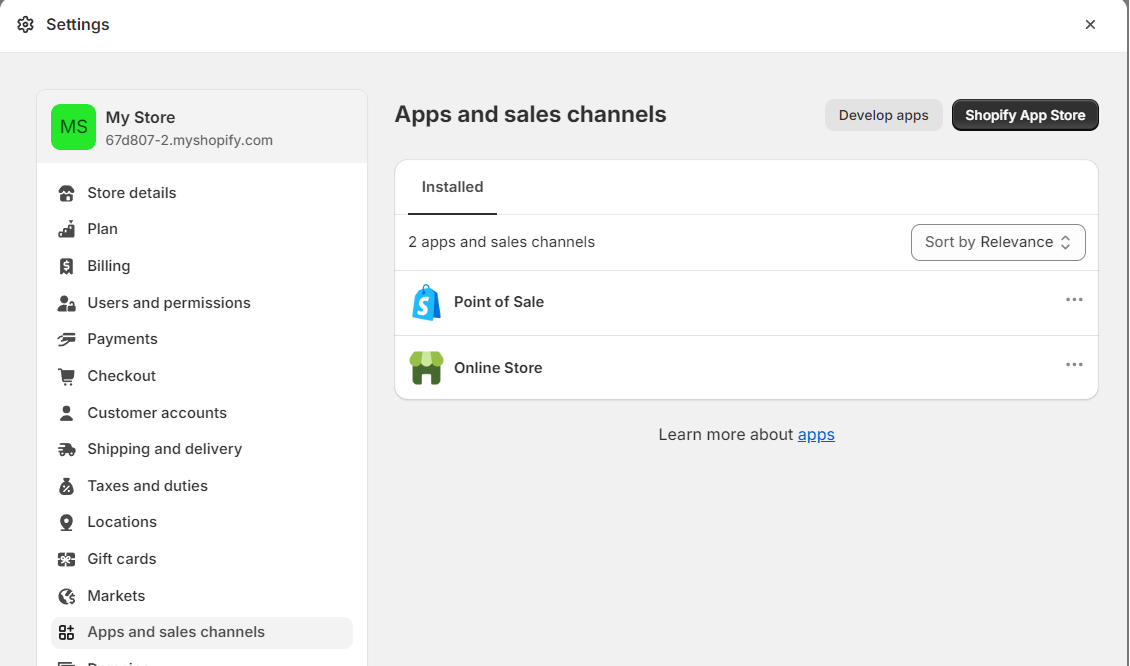
- In Shopify Admin open the 'Settings' tab then 'Apps and sales channels'.
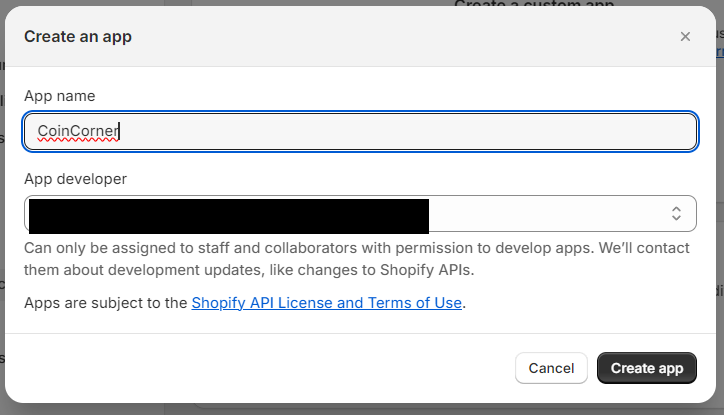
- Click 'Develop apps'. You may be prompted to allow custom app development. If so, click the 'allow' button then the confirmation button on the next screen. Next, click 'Create an app'. Name the app as you wish (we suggest 'CoinCorner') then click 'Create app'.
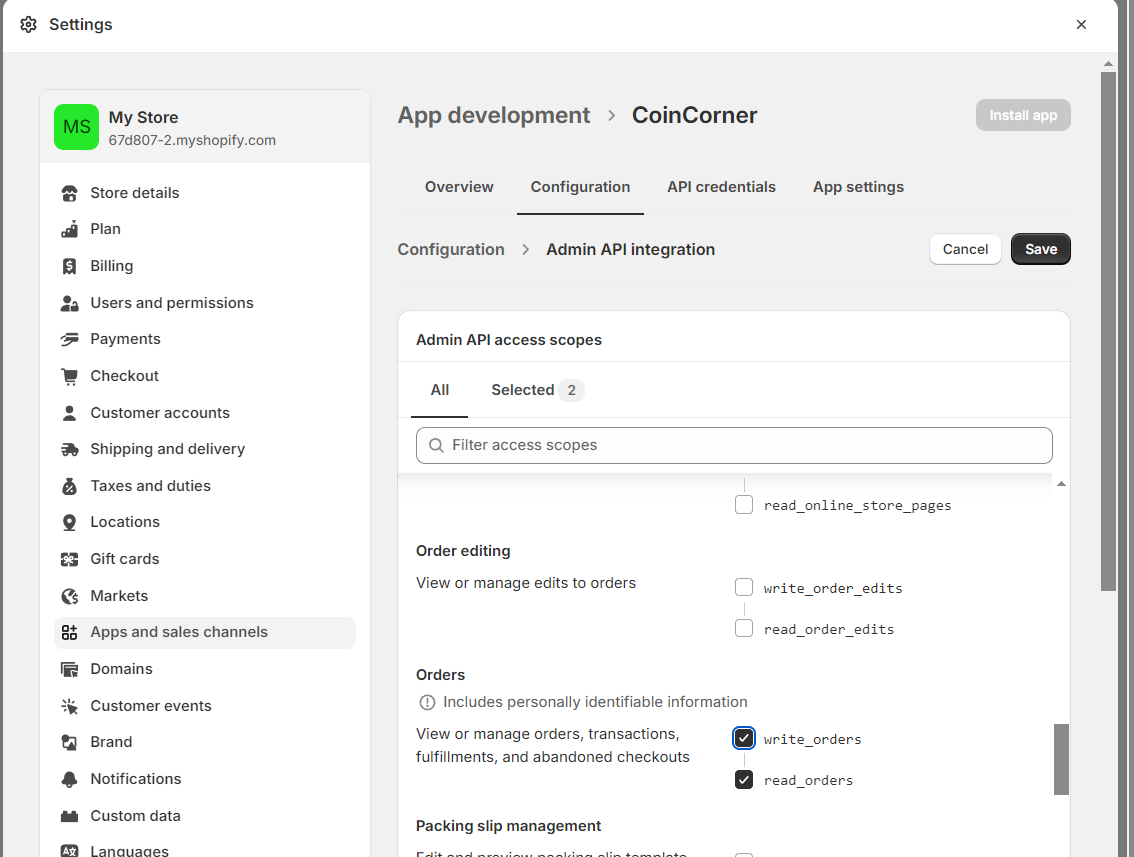
- In the first section labeled 'Select your access scopes to get started' click 'Configure Admin API scopes'.
- Scroll down to the 'Orders' section and enable both 'write_orders' and 'read_orders' then click 'Save' at the top.
- At the very top click 'Install app' then click 'Install'on the popup.
- Shopify will now prompt you to reveal an 'Admin API access token'. Do not do this yet as this token can only be revealed once. If revealed and lost, this token can be recreated by clicking 'Uninstall app'then repeating the above steps.
Step 2.
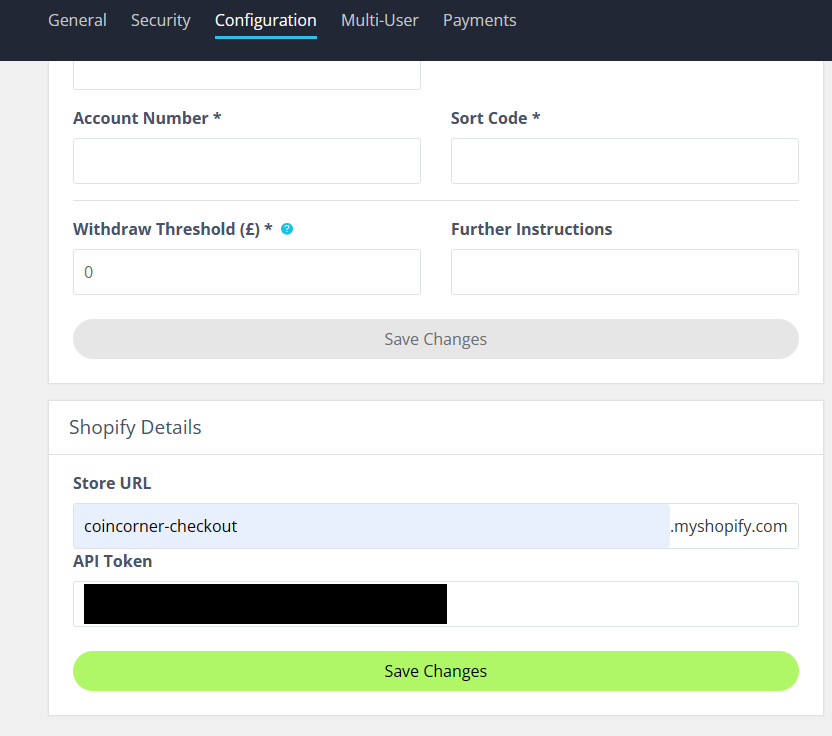
- In a new window (leaving the previous page open) go to this link and scroll down to 'Shopify Details'.
- In the first field, 'Store URL', enter your admin url. This will either be in the form of ""xxxxx.myshopify.com" or ""admin.shopify.com/store/xxxxx" and may differ from your customer-facing url.
- Back in your Shopify settings reveal your API token (Found at Settings > Apps and sales channels > Develop apps > CoinCorner, or your chosen name > API credentials)
- Copy your token then paste it into the second field, 'API Token', in your CoinCorner settings page
- Click 'Save Changes'
- This will reveal a new area: 'Your Shopify script'. Copy the contents of this area, including the '<script>' tags.
Step 3.
- Return to your Shopify settings and navigate to 'Checkout'.
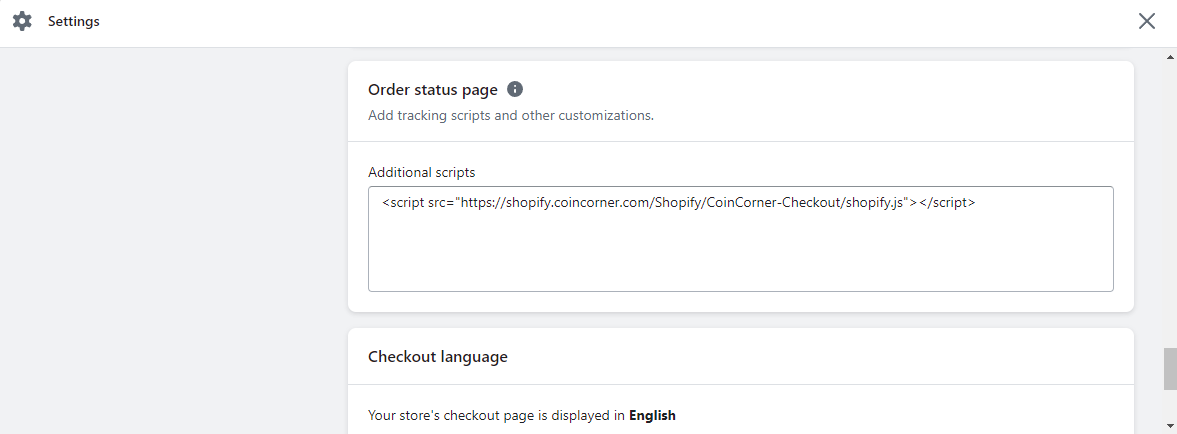
- Scroll all the way down to the section labelled 'Order status page'. Paste script from the previous step in the 'Additional scripts' box.
- Click 'Save' at the bottom of the screen.
Step 4.
- Still in your Shopify settings, navigate to 'Payments' and scroll down to 'Manual payment method'
- Click 'Add manual payment method' and select 'Create custom payment method'.
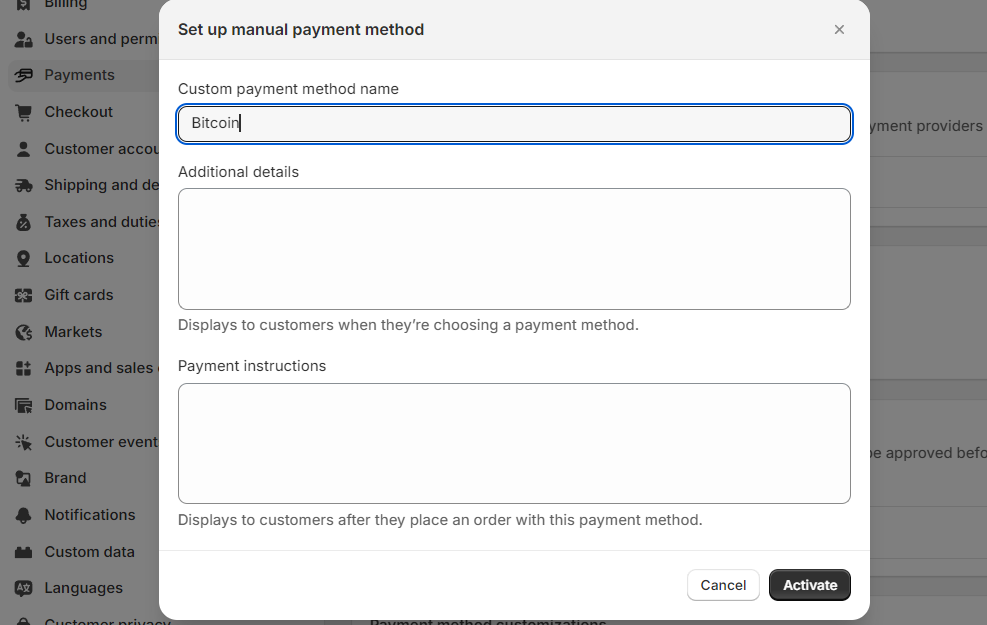
- Under 'Custom payment method name' enter 'Bitcoin'. Note that this must be spelled exactly. You may enter what you wish for the other fields or leave them blank.
- Click 'Activate'.

All Finished!
You are now ready to start accepting Bitcoin on your site through CoinCorner!
If you have any queries please contact us.